Getting Started with Zayyrah

Set up your complete POS system, online store, and delivery management in just 5 minutes. No credit card required.

Free forever for small businesses

In This Guide

  1. Choose Your Account Type
  2. Create Your Account
  3. Select Your Business Type
  4. Enter Business Details
  5. Brand Your Store
  6. Setup Complete - Next Steps
  7. Explore Your Dashboard
  8. Add Your First Product
  9. Start Selling with POS
1

Choose Your Account Type

30 seconds

Visit zayyrah.com/accounts/onboarding/ to begin. You'll see two options:

  • I Have a Business - Choose this to set up your store with POS, inventory, delivery, and online store.
  • I Want to Shop - For customers who want to browse and buy from local stores.

Select "I Have a Business" and click Get Started.

Tip: Zayyrah supports Pharmacies, Grocery Stores, Clothing, Electronics, Restaurants, Retail, and Wholesale businesses.
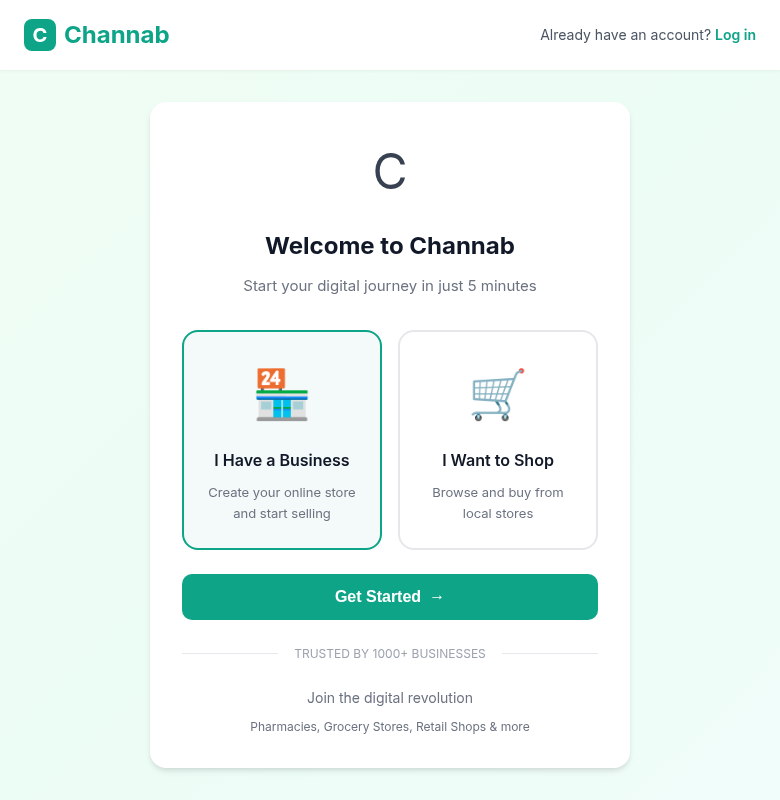
Zayyrah welcome page - choose your account type
Welcome page - Select "I Have a Business" to get started
2

Create Your Account

1 minute

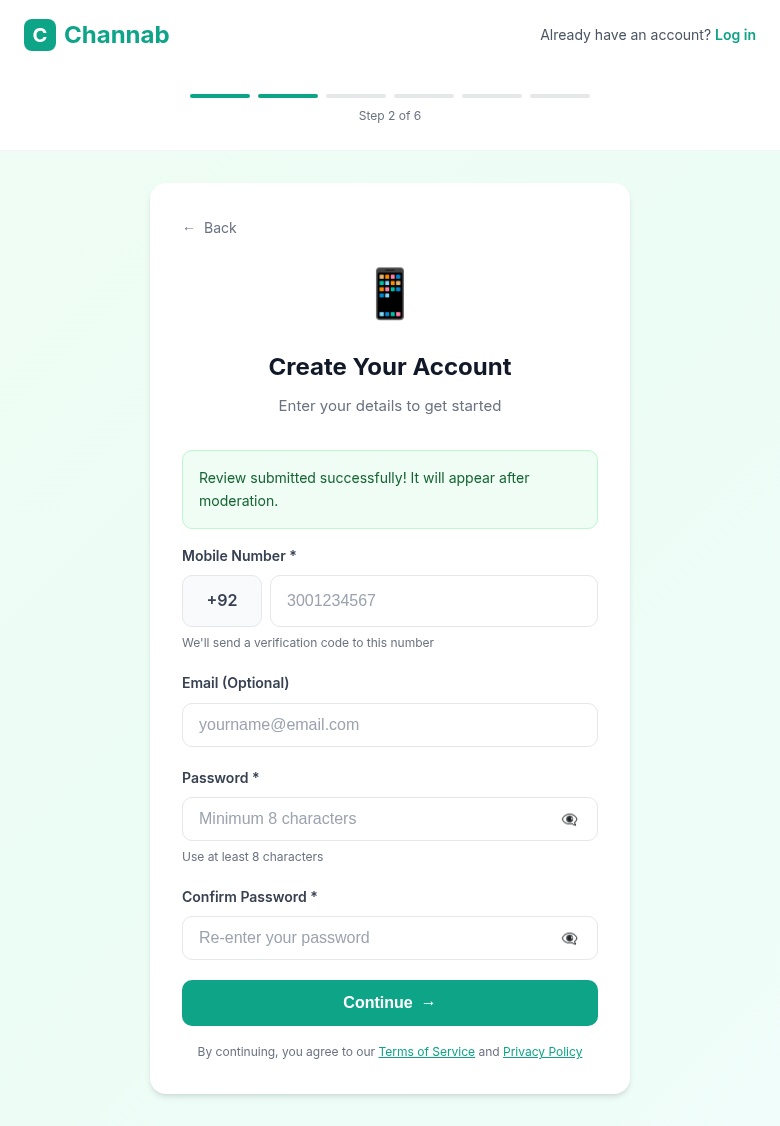
Enter your details to create your account:

  • Mobile Number (required) - Your primary contact number with +92 prefix
  • Email (optional) - For order notifications and reports
  • Password (required) - Minimum 8 characters
  • Confirm Password - Re-enter to verify
Tip: Use a mobile number that you actively use. This will be your login ID and customers will see it for delivery orders.
Zayyrah account creation form
Step 2 of 6 - Enter your mobile number, email, and password
3

Select Your Business Type

15 seconds

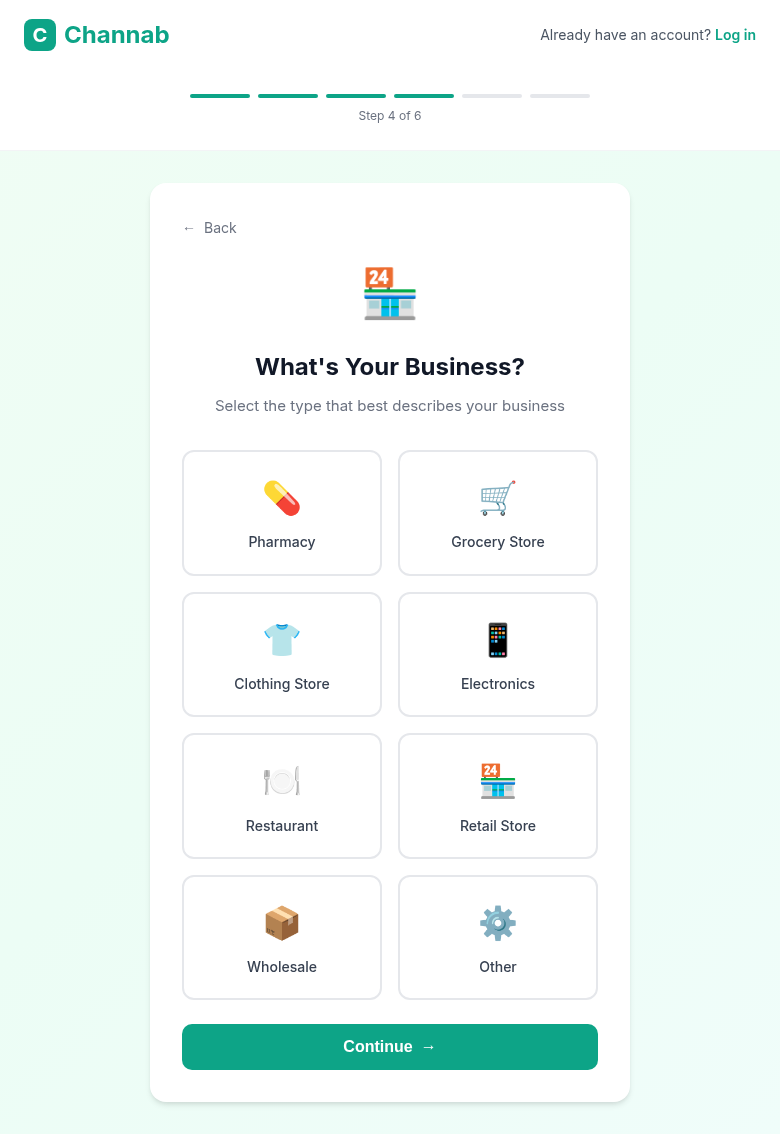
Choose the category that best describes your business. This helps us set up the right product categories and features for you:

  • Pharmacy - Medicine, health products, expiry tracking
  • Grocery Store - Daily essentials, fresh produce, FMCG
  • Clothing Store - Apparel, sizes, colors, variants
  • Electronics - Gadgets, accessories, serial numbers
  • Restaurant - Food items, recipes, production
  • Retail Store - General retail merchandise
  • Wholesale - Bulk selling, B2B pricing
  • Other - Any other business type
Tip: Don't worry - you can always add custom categories later. This just gives you a head start with pre-built product categories.
Zayyrah business type selection
Step 4 of 6 - Select your business type for customized categories
4

Enter Business Details

1 minute

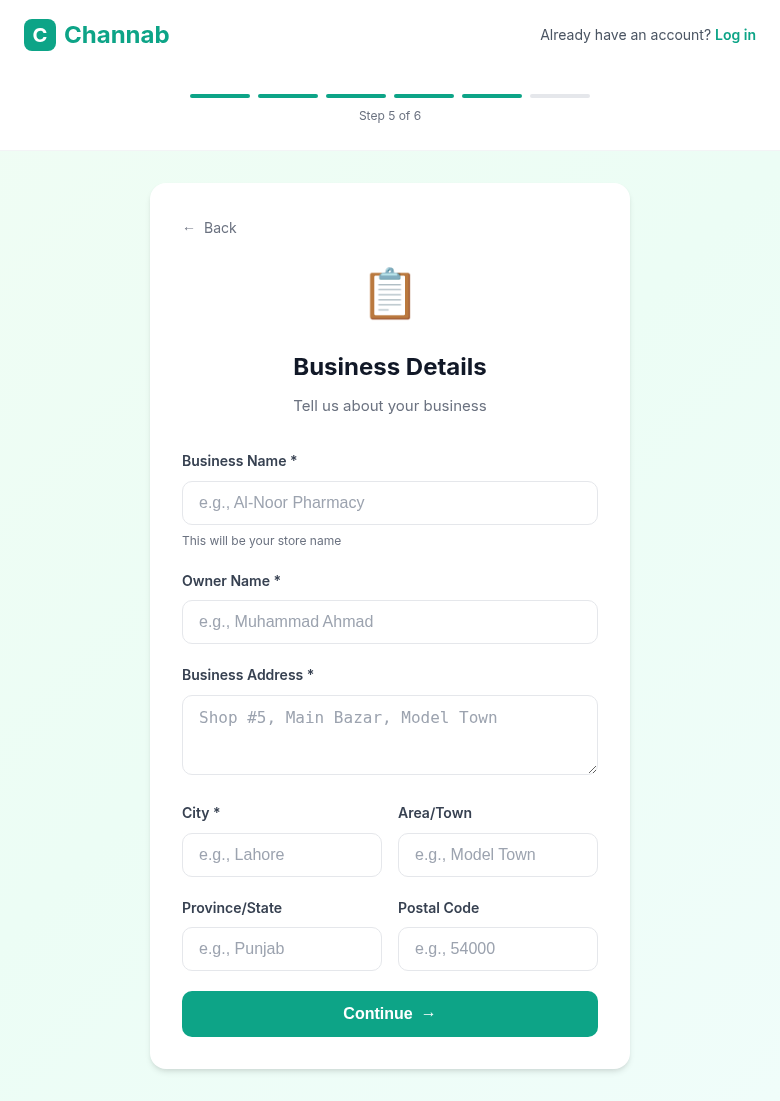
Fill in your business information:

  • Business Name (required) - This becomes your store name visible to customers
  • Owner Name (required) - The registered business owner
  • Business Address (required) - Your physical store location
  • City (required) - Helps customers find you on the marketplace
  • Area/Town (optional) - Neighborhood or locality
  • Province/State (optional)
  • Postal Code (optional)
Tip: Your business name automatically creates a unique store URL (e.g., zayyrah.com/store/shop/ali-grocery-store/). Choose a name that's easy for customers to remember.
Zayyrah business details form
Step 5 of 6 - Enter your business name, address, and location
5

Brand Your Store

1 minute (optional)

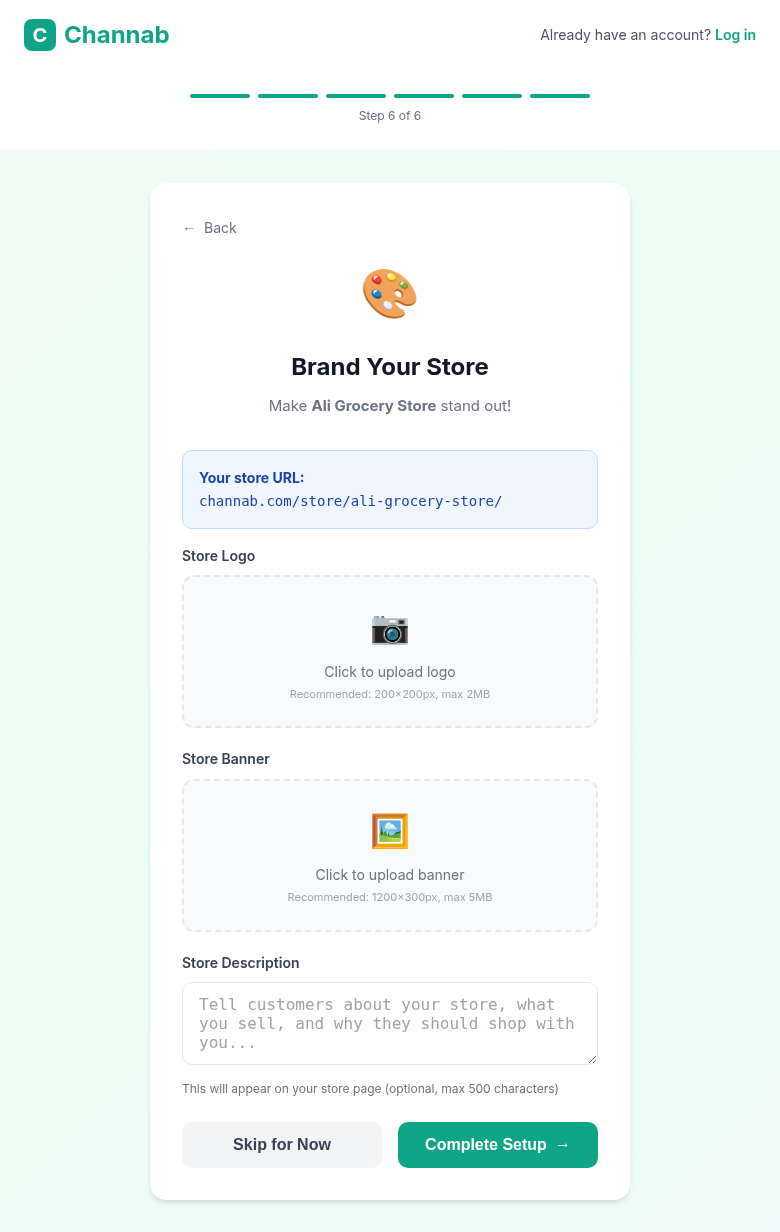
Make your store stand out with branding:

  • Store Logo - Recommended 200x200px, max 2MB. Appears in marketplace search results.
  • Store Banner - Recommended 1200x300px, max 5MB. Displayed on your store page header.
  • Store Description - Tell customers what you sell and why they should shop with you (max 500 characters).

You'll also see your Store URL - this is the link you can share with customers on WhatsApp, social media, or print on flyers.

Tip: You can skip this step and add branding later from Settings. But stores with logos get 3x more clicks in search results!
Zayyrah store branding - logo, banner, description
Step 6 of 6 - Upload your logo, banner, and add a store description
6

Setup Complete!

Done!

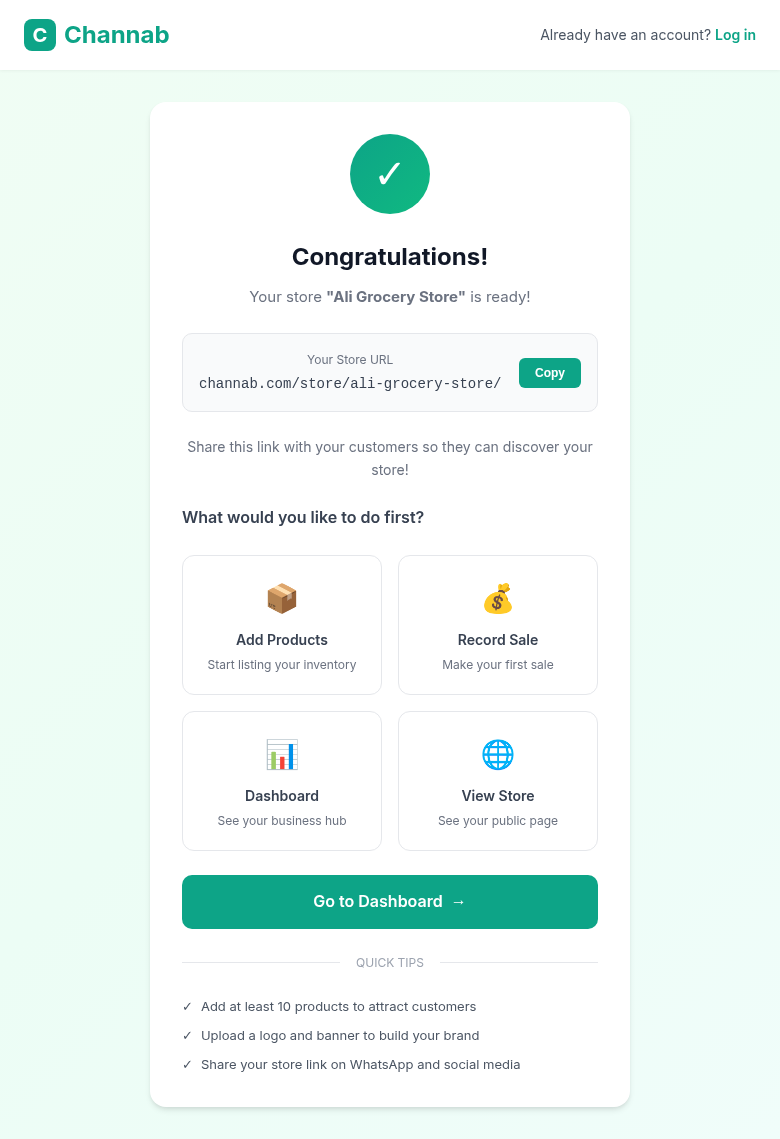
Congratulations! Your store is now ready. On the success page you'll find:

  • Your Store URL - Copy and share with customers
  • Add Products - Start listing your inventory
  • Record Sale - Make your first POS transaction
  • Dashboard - View your business analytics
  • View Store - See your public-facing online store
Quick Tips: Add at least 10 products to attract customers. Upload a logo and banner to build your brand. Share your store link on WhatsApp and social media.
Zayyrah store setup complete - congratulations page
Your store is ready! Choose your next action from the quick cards.
7

Explore Your Dashboard

Ongoing

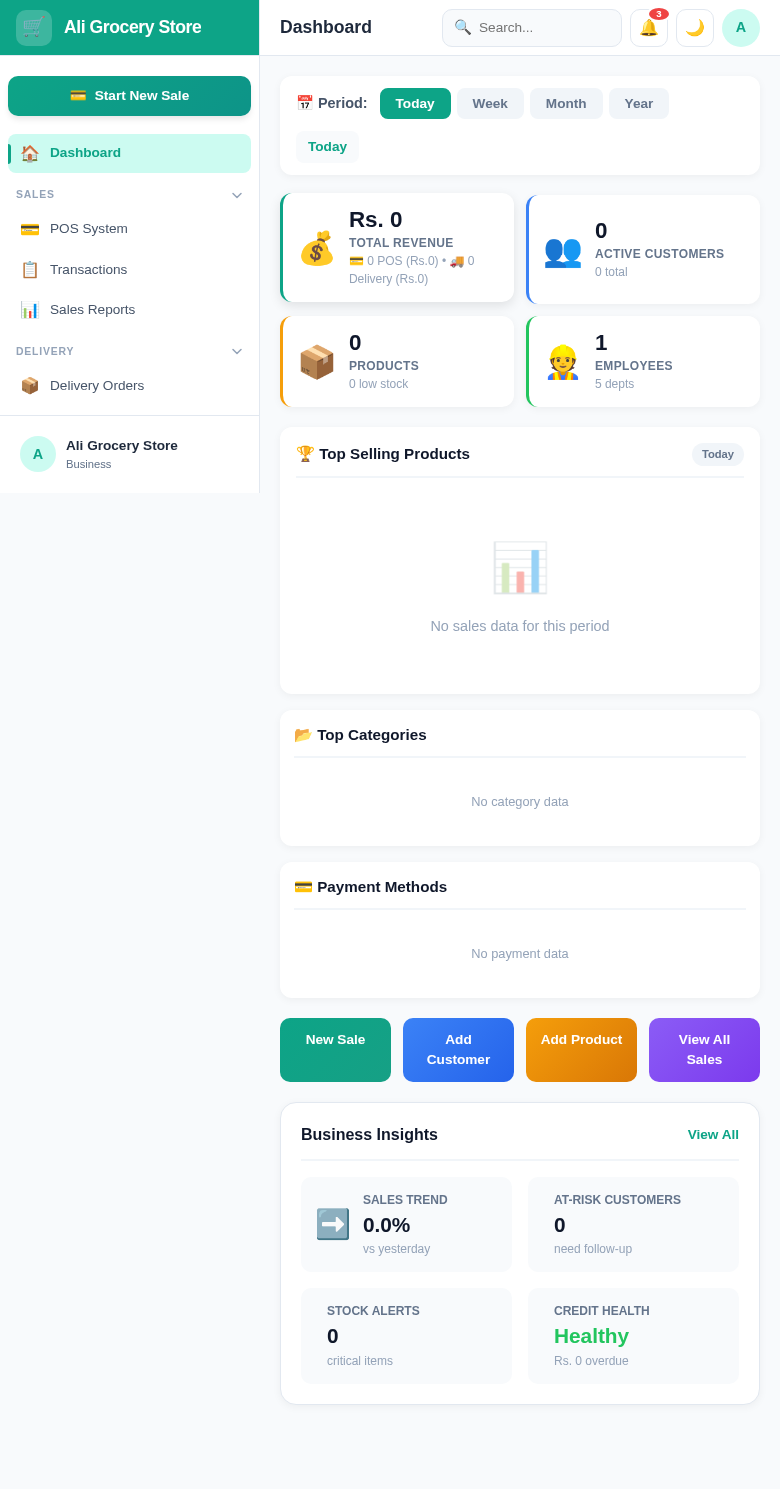
Your business dashboard is your command center. Here you can see:

  • Total Revenue - Combined POS and delivery sales
  • Active Customers - Your customer base
  • Product Count - Inventory overview with low stock alerts
  • Employee Count - Your team at a glance
  • Top Selling Products - Best performers by revenue
  • Business Insights - Sales trends, at-risk customers, stock alerts, credit health

Use the sidebar navigation to access all features: Sales, Delivery, Insights, Products, Customers, Finance, Team, Reports, Online Store, and Settings.

Zayyrah business dashboard with analytics
Your business dashboard - revenue, customers, products, and insights at a glance
8

Add Your First Product

2 minutes

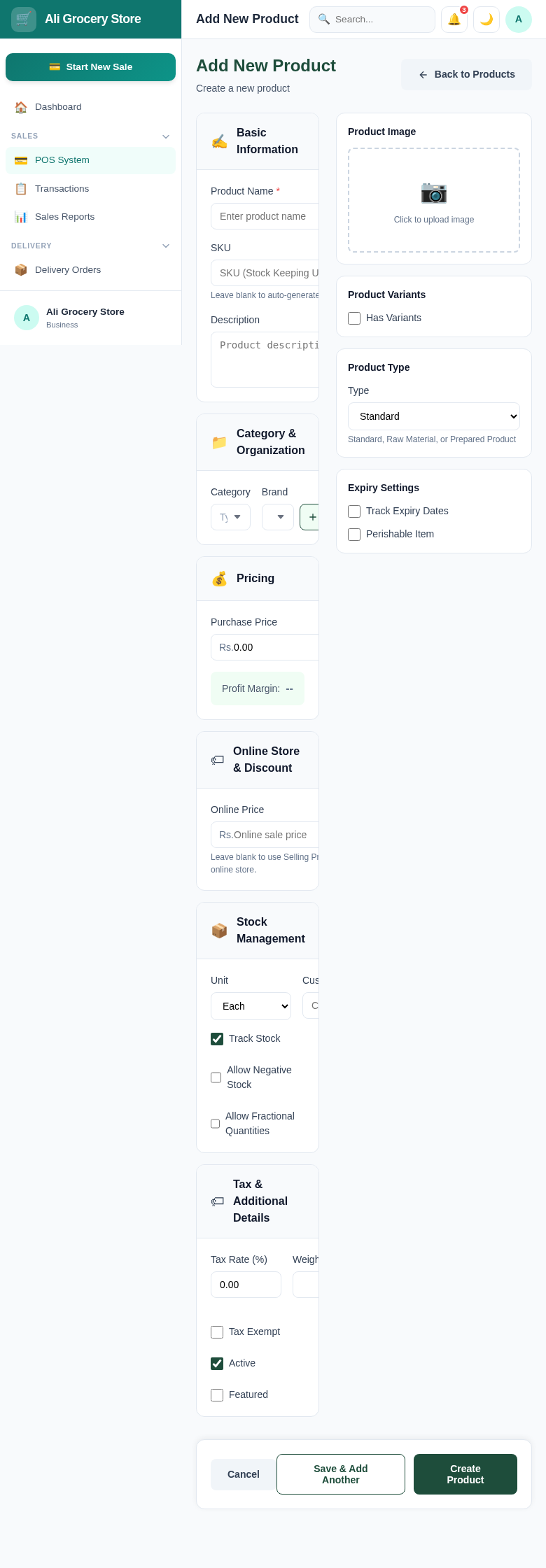
Navigate to Products → Add Product from the sidebar. Fill in:

  • Basic Information - Product name, SKU (auto-generated if blank), barcode, description
  • Category & Organization - Select from pre-built categories, add brand and supplier
  • Pricing - Purchase price, selling price, wholesale price, minimum price. Profit margin auto-calculated.
  • Online Store & Discount - Set online price and compare-at price for discount badges
  • Stock Management - Unit type (each, kg, liter, etc.), reorder level, track stock toggle
  • Tax & Details - Tax rate, weight, dimensions, tags
  • Product Image - Upload a clear product photo
  • Variants - Enable for products with size/color options
  • Expiry Settings - Enable for perishable items (recommended for Pharmacy and Grocery)
Tip: Use "Save & Add Another" to quickly add multiple products. For bulk import, use the CSV import feature from the Products page.
Zayyrah add new product form
Add Product form - comprehensive product details with pricing, stock, and online store settings
9

Start Selling with POS

Ready to sell!

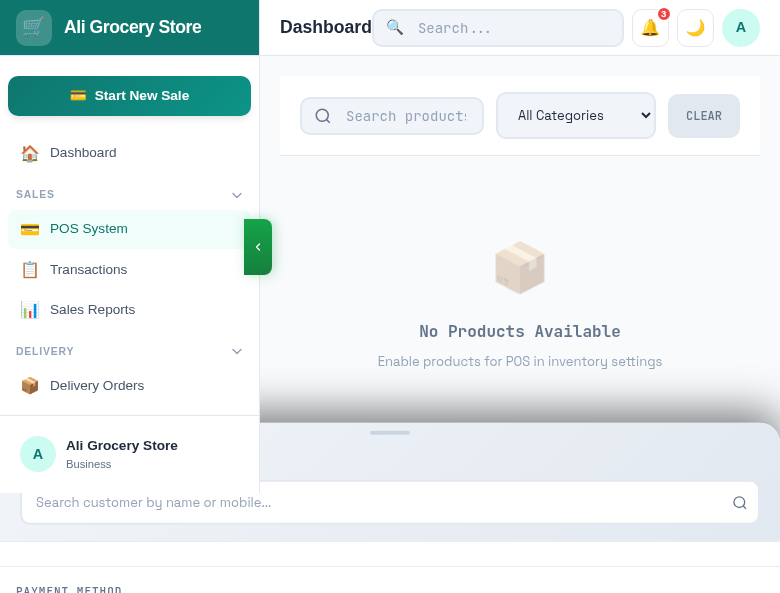
Navigate to Sales → POS System from the sidebar. The POS interface includes:

  • Product Grid - Browse or search products by name, SKU, or barcode scan
  • Category Filter - Quickly filter by product categories
  • Shopping Cart - Tap products to add, adjust quantities
  • Customer Search - Link the sale to a customer for credit tracking
  • Payment Methods - Cash, Card, Credit (udhar), or Split payment
  • Complete Sale - Process the transaction and print receipt
Tip: Enable products for POS from the product detail page. Not all products need to be POS-enabled - you can have online-only or POS-only products.
Zayyrah system interface with cart and payment
POS System - search products, manage cart, select payment method, and complete sales

Ready to Get Started?

Set up your store in 5 minutes. Free POS, inventory, online store, and delivery management.

Create Your Free Store Now

Frequently Asked Questions

Is Zayyrah really free?
Yes! Our Starter plan is free forever with basic POS and inventory features. Premium plans with advanced features like delivery management, online store, and employee payroll start from PKR 2,500/month.
What types of businesses can use Zayyrah?
Zayyrah supports all types: Grocery stores, Pharmacies, Clothing stores, Electronics shops, Restaurants, Retail stores, Wholesale businesses, and more. Each business type gets customized product categories.
Do I get an online store automatically?
Yes! When you complete the onboarding, your online store is automatically created with a unique URL (e.g., zayyrah.com/store/shop/your-store-name/). You just need to add products and they'll appear on your online store.
Can I manage home deliveries?
Absolutely! Zayyrah includes a complete delivery management system with delivery agent app, GPS tracking, delivery zones, time slots, COD handling, and recurring order support.
Does it support credit/udhar management?
Yes! Our customer wallet system supports credit (udhar) with credit limits, aging analysis (30-60-90+ days), clearance schedules, and automated payment reminders. Perfect for Pakistani retail culture.
Can I track product expiry dates?
Yes! Zayyrah has advanced expiry management with FEFO (First Expiry First Out) stock allocation, batch tracking, expiry alerts, and automatic expired stock handling. Essential for pharmacies and grocery stores.